
- English
- Arabic
In This Blog Post
Share This Article
- Published: Apr 13, 2026
- Last Updated: Sep 5, 2026
- 🔊 Listen
TL;DR
- A structured Business Central setup directly impacts reporting accuracy, VAT compliance, and long-term scalability
- Company details, VAT configuration, and posting structures must align with FTA and EmaraTax from day one
- Incorrect VAT posting groups or mappings can break reporting and create issues during filing and audits
- UAE-specific VAT reports, invoice formats, and compliance features often require partner apps or extensions
- Validating transactions, VAT calculations, and workflows in sandbox avoids rework after production
- Clean setup ensures smoother month-end closes, fewer adjustments, and better financial control as you scale
- Selecting the correct country/region and environment setup helps meet UAE data residency and localisation requirements
- A well-designed chart of accounts and posting structure improves VAT reconciliation and audit readiness
Setting up a new company in Microsoft Dynamics 365 Business Central is where your financial system begins to take shape. In the UAE, this step carries added importance, as it directly impacts VAT compliance, audit readiness, and how smoothly you can file returns through EmaraTax. It goes beyond entering basic company details and defines how transactions are recorded, how VAT is calculated across different scenarios, and how reports are generated. From configuring the chart of accounts and fiscal periods to setting up VAT posting groups, invoice formats, and user access, every decision plays a role. A structured setup ensures accurate reporting, reduces manual effort, and keeps your business aligned with UAE Federal Tax Authority requirements from the start.
In this guide, we walk through how to set up a new company in Business Central specifically for UAE businesses, so you start on a compliant and scalable foundation.

MS Dynamics, Refined
Automation Aligned With Your Accounting Strategy
Setting Up a New Company Environment in Business Central for UAE Businesses
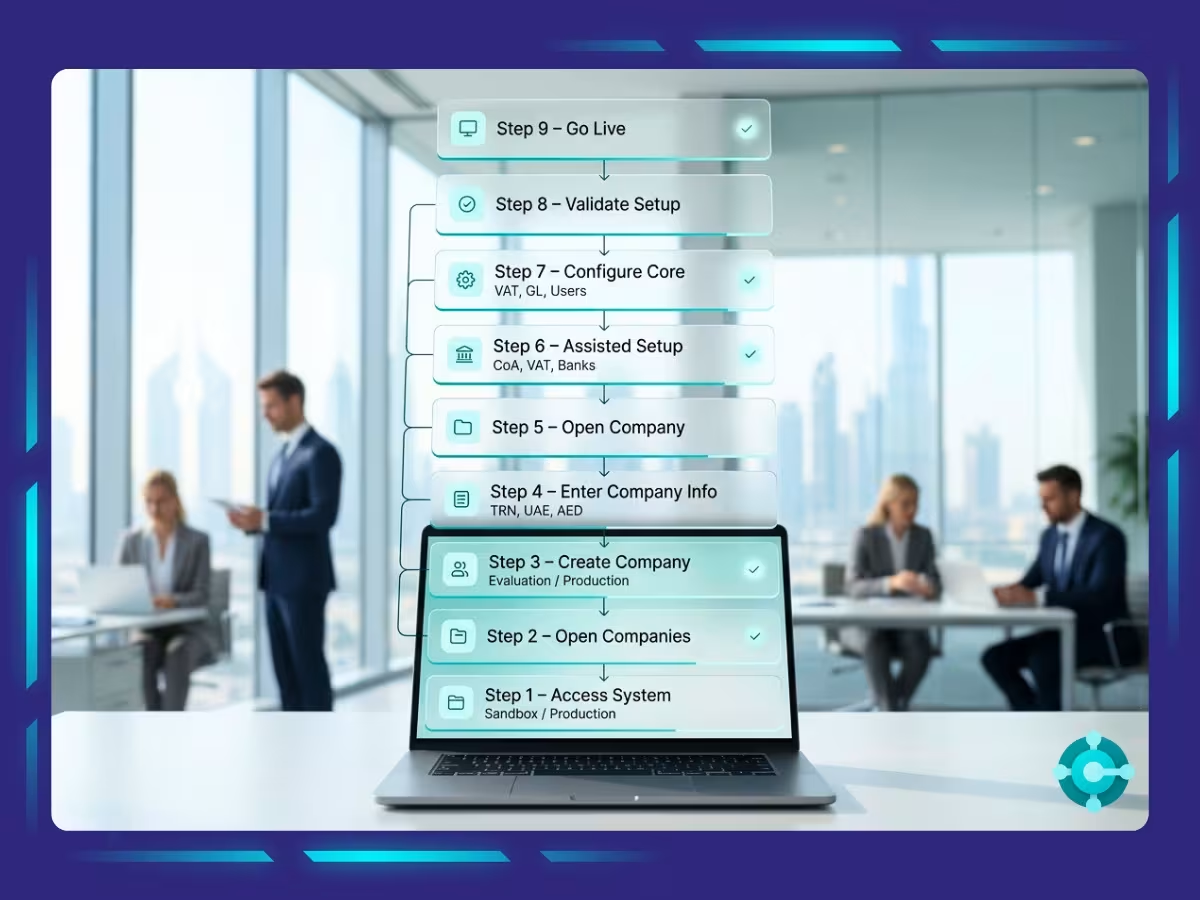
Setting up a new company is where Business Central becomes operational. It begins with selecting the right environment, creating the company, and entering accurate details aligned with UAE records. Next, core configurations like chart of accounts, VAT setup, posting groups, and master data are completed, often using assisted setup tools. Before going live, transactions, VAT calculations, reports, and user controls must be validated. A structured setup and smooth move to production ensure compliance, accuracy, and efficient day-to-day operations.
Step 1: Access Business Central
Log in to Microsoft Dynamics 365 Business Central using your credentials and confirm the environment you are working in; Sandbox (testing) or Production (live).
Best practice for UAE implementations is to complete the full setup in a sandbox environment first, especially during migration to MS Dynamics. This allows you to test VAT configurations, reporting structures, and workflows without impacting live data.
Step 2: Open the Companies List
Use the Tell Me (Alt + Q) search function, type “Companies,” and open the Companies list page. This page displays all companies within the selected environment and serves as the starting point for creating or managing entities.
Step 3: Create a New Company
Click New → Create New Company, then select the appropriate setup option:
- Evaluation (Sample Data – Contoso)
Suitable for demonstrations and training purposes only - Production (Setup Data Only)
Recommended for UAE businesses preparing for live operations - Create New (No Data)
Used when building a fully customised accounting structure
For most UAE implementations, Production (Setup Data Only) provides a balanced starting point with standard configurations that can be tailored further.
Step 4: Enter Company Information (UAE-Specific Requirements)
This step is critical for compliance. All details should match official UAE records, including trade licence and tax registration data:
- Company Name (English and Arabic, where applicable)
- Trade Name (as per trade licence)
- Country/Region: United Arab Emirates (AE)
- Registered Address
- Tax Registration Number (TRN), if VAT registered
- Base Currency: AED
- Language preferences (English interface; Arabic often used for documents)
Inaccurate or inconsistent information may lead to VAT return discrepancies, non-compliant invoices, and complications during Federal Tax Authority (FTA) reviews.
Step 5: Open the Newly Created Company
Once created, select the company from the list to enter its operational environment and begin configuration.
Step 6: Run Assisted Setup (Recommended)
Search for “Assisted Setup” to access guided configuration tools. These help initialise:
- Chart of Accounts
- VAT structure
- Bank accounts
- Opening balances
- Approval workflows
It is important to note that UAE-specific localisation; such as VAT return formats and compliant invoice layouts; is typically delivered through certified partner extensions rather than standard Business Central features.
Step 7: Complete Mandatory UAE Configuration
Before posting transactions, the following configurations must be completed:
1. General Ledger and Posting Setup
- General Ledger Setup
- Number Series for documents
- Posting Groups (General, Customer, Vendor, Inventory)
2. UAE VAT Configuration
- VAT Business and Product Posting Groups
- VAT Posting Setup with correct mappings
- VAT rates (5% standard, 0% for zero-rated, exempt classifications)
- VAT reporting aligned with EmaraTax structure
3. Chart of Accounts (UAE-Aligned)
- Input VAT and Output VAT control accounts
- Revenue and expense classifications
- Mapping aligned to VAT return reporting
4. Master Data Setup
- Customers and Vendors
- Bank accounts (including UAE banks, where applicable)
5. Security and Internal Controls
- User roles and permissions
- Approval workflows
- Segregation of duties to reduce risk
Step 8: Validate the Setup (Pre-Go-Live Review)
Before transitioning to production, perform a full validation:
- Test sales and purchase transactions
- Verify VAT calculations across scenarios
- Review financial reports
- Reconcile VAT postings with the general ledger
- Test approval workflows
- Confirm audit logs and user access controls
This step ensures compliance, accuracy, and operational readiness while preventing costly corrections after go-live.
Step 9: Move to Production
If the setup is completed in a sandbox environment, migrate it to production using:
- Copy Company
- Configuration Packages
- RapidStart or Excel-based migration tools
This checklist ensures your Business Central environment supports VAT compliance, accurate reporting, and strong operational control. It also highlights the core benefits of MS Dynamics, helping you build a system that is reliable, scalable, and aligned with UAE compliance requirements from the start.

Must-Do Checklist for New Companies in Business Central (UAE Context)
|
Area |
Priority |
|---|---|
| Accounting Periods | Critical |
| General Ledger Setup | Critical |
| Number Series | Critical |
| Posting Groups | Critical |
| Chart of Accounts (VAT-aligned) | Critical |
| Dimensions (cost centres/projects) | Mandatory |
| VAT Setup (FTA compliant) | Mandatory |
| Banks (UAE banking structure) | Mandatory |
| Customers and Vendors | Mandatory |
| Permissions and User Roles | Mandatory |
| Configuration Packages | Mandatory |
| Opening Balances | Mandatory |
| Inventory Posting | Conditional |
| Fixed Asset Setup | Mandatory |
| Approval Workflows | Recommended |
| Change Log | Recommended |
| Email Configuration | Recommended |
| Sales and Purchase Setup | Mandatory |
This checklist ensures your Business Central environment supports VAT compliance, accurate reporting, and operational control.
Set Up Your Company the Right Way with a Business Central Accounting Expert in the UAE
Setting up your company in Microsoft Dynamics 365 Business Central determines how reliable your financial system will be over time. In the UAE, it also directly affects your ability to stay compliant with VAT regulations and respond confidently during audits. A well-structured setup improves the accuracy of VAT reporting and reconciliation, strengthens the reliability of financial statements, and ensures faster, more consistent month-end closing. It also enhances audit readiness, supports strong internal controls, and allows your system to scale across multiple entities or jurisdictions as your business grows.
At Whiz Consulting, our Business Central accounting services are designed with UAE compliance at the core. From structuring charts of accounts and configuring VAT correctly to aligning reporting with EmaraTax and setting up user roles and workflows, every element is built for accuracy and control. The result is a clean, compliant system that supports your business from day one and continues to scale as you grow.

Get customized plan that supports your growth

Have questions in mind? Find answers here...
A UAE-friendly chart of accounts should include clear revenue and expense categories, dedicated Input and Output VAT accounts, and proper mapping for VAT return reporting. Using dimensions for cost centres or projects also improves reporting clarity.
Company name, trade name, address, and TRN must match exactly with trade licence and FTA records. Any mismatch can lead to invoice errors, VAT filing issues, or audit complications.
VAT registration is mandatory once the threshold is crossed, while voluntary registration is optional earlier. Before receiving a TRN, businesses can set up VAT structure in Business Central but avoid live VAT posting until registration is complete.
Set up VAT posting groups, define correct VAT rates, and map them properly in VAT posting setup. Ensure VAT accounts and reporting align with UAE return requirements for accurate EmaraTax filing.
UAE e-invoicing is being introduced in phases, starting with a pilot and moving toward mandatory adoption. Businesses should prepare early by ensuring systems can support structured e-invoicing and integration.
UAE implementations typically require apps for VAT reporting, compliant invoice formats, and statutory reports. These are usually partner-provided extensions available through AppSource.
Thousands of business owners trust Whiz to manage their account
Let us take care of your books and make this financial year a good one.