- English
- Arabic
In This Blog Post
Share This Article
- Published: Oct 13, 2026
- Last Updated: Oct 13, 2026
- 🔊 Listen
TL;DR
- Set up Zoho Books by creating your organisation profile with the correct UAE location, filling in the required business details, and choosing a base currency.
- Configure VAT and Corporate Tax settings, then set up e-invoicing.
- Structure your chart of accounts and add customer and vendor records.
- Connect eligible bank accounts to automate transaction imports, then assign user roles according to each team's responsibilities.
- Prevent Zoho Books implementation errors by cleaning data before migration, limiting unnecessary customisation, and training users properly.
Setting up Zoho Books for UAE businesses involves configuring the organisation profile, VAT, Corporate Tax, and e-invoicing to support accurate accounting and tax reporting. It’s important to set up Zoho Books accurately from the beginning, as incorrect tax settings, incomplete opening balances, or poorly mapped accounts can affect financial operations later on.
This guide explains how to set up Zoho Books for UAE businesses, from creating the organisation profile to adding users and assigning the right roles. It also covers the best practices that help businesses maintain reliable accounting records.

Set Up Zoho Books with Experts
Get Expert Help Configuring Zoho Books for Your UAE Business
How to Set up Zoho Books for UAE Businesses
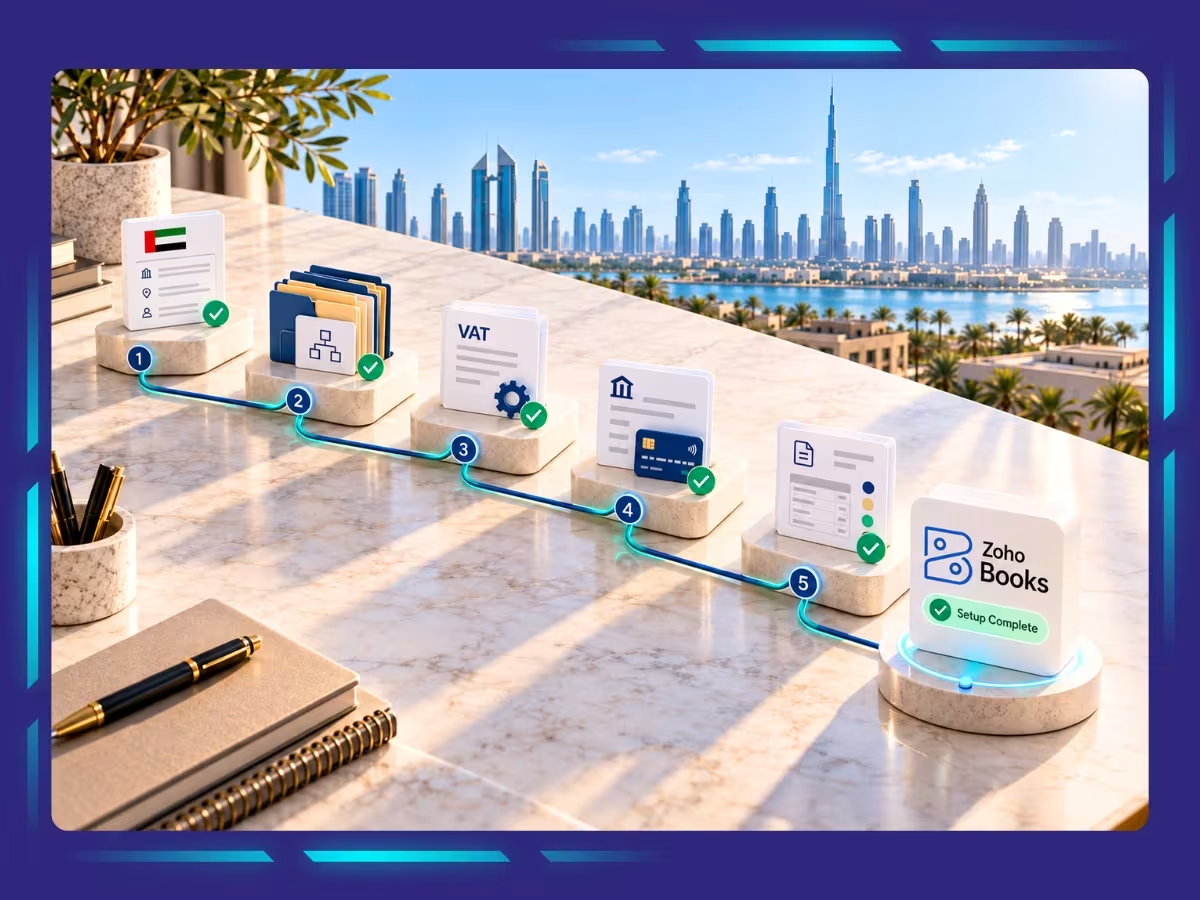
The steps to configure Zoho Books for businesses in the UAE involve: creating a company profile, configuring VAT and Corporate Tax settings, setting up e-invoicing, building the chart of accounts, adding customer and vendor records, and setting up bank feeds.
Step 1: Create Your Organisation
- Select the United Arab Emirates as your base country. Since this location cannot be changed after setup, verify your selection before proceeding.
- Enter your legal business name, contact details, and other requested information. Upload your company logo, if required for invoices and other transaction documents.
- Confirm AED (UAE Dirham) as your base currency, which is the default for the UAE edition.
Step 2: Configure VAT and Corporate Tax
To configure VAT settings:
- Select the Emirate in which your business operates
- Enter your 15-digit Tax Registration Number (TRN) issued by the FTA
- If your business deals with international customers or suppliers, enable the option to trade with contacts outside the UAE
To configure Corporate Tax settings:
- Go to Settings
- Under Taxes & Compliance, select Taxes, then choose Corporate Tax
- Enter your TRN
- Select the applicable date in the Generate First Corporate Tax Return From field
- Under Corporate Tax Accounts, select the accounts for Corporate Tax calculations
- Save the settings
Step 3: Set Up E-Invoicing
Verify Your Organisation Details
- Under Taxes & Compliance, select E-Invoicing
- Click Setup Now
- Under Verify Your Details, enter your registered business name, TIN (Tax Identification Number), TRN, organisation address, and registered email address
- Review and accept the Terms & Conditions
- Click Save & Continue
Now, connect with the FTA:
- Log in to the FTA EmaraTax portal
- Locate the relevant taxable person and click View
- Verify your registered email address and mobile number, then click Proceed
- Select E-Invoicing
- Under List of ASPs for onboarding, search for and select Zoho Software Trading LLC
- Click Proceed to ASP, then select Yes in the confirmation prompt
- On the Zoho ASP page, enter your registered email address and TIN. Add your registered mobile number, if required.
- Click Verify Applicant Details
- Review the entity details, select the confirmation checkbox, and click Submit
- Click Got it, Close Tab to finish the process on the FTA portal
Complete E-invoicing Setup in Zoho Books:
- Return to the E-Invoicing Setup page
- Click Verify & Complete Setup
Step 4: Configure the Chart of Accounts
- Review the default accounts for assets, liabilities, equity, income, and expenses to confirm they match your business’s reporting needs
- Add accounts for distinct revenue streams, operating expenses, or other reporting requirements where necessary
- Set up the relevant bank and credit card accounts before entering opening balances
- Set the opening balance date to the date you begin using Zoho Books for your accounting records
Step 5: Add Customers & Vendors
- Go to Sales, select Customers to add customers or go to Purchases and select Vendors to add vendors
- Click + New and enter the required contact and business details
- Enter the opening balance under Other Details and verify the amounts against your previous accounting records before clicking Save
Step 6: Set up Automatic Bank Feeds
To add bank accounts that support automatic bank feeds:
- Go to Banking
- Click Add Bank or Credit Card in the top-right corner
- Click Connect Now in the Connect and Add Your Bank Accounts or Credit Cards page
- Click the dropdown next to Bank Feeds Service Provider, read and agree to the terms and conditions, and click Proceed
- Enter your bank’s name or select it from the list
- Enter your bank login credentials
- Select the account you want to connect
- Choose the date from which to fetch transactions. Zoho Books supports fetching records up to 90 days of transaction history.
- Select the currency
- Click Continue to import bank feeds automatically
Step 7: Add Users and Assign Roles
- Go to Settings
- Under Organisation Settings, select Users under Users & Roles
- Click Invite User
- Enter the user’s name and email address
- Select the Role based on their responsibilities
- Save to complete the setup
What are the Best Practices for Successful Zoho Books Implementation?
Successful Zoho Books implementation requires clean data migration, accurate opening balances, correctly configured settings, and role-based user training. Businesses should also limit unnecessary customisation, review issues after launch, and assess system performance quarterly to maintain reliable accounting records.
- Clean Data Before Migration: Remove duplicate customer, vendor, and item records before importing data into Zoho Books
- Validate Opening Balances: Match opening balances against the closing balances in your previous accounting system as of the migration date
- Configure Base Settings: Set the organisation’s currency, time zone, and tax rules
- Avoid Unnecessary Customisation: Start with standard Zoho Books features and introduce custom fields, functions, or automation only when a specific business requirement justifies them
- Train Users by Role: Train accounting, sales, and management teams on the tasks they perform
- Schedule Post-Launch Support: Review implementation issues at 30 and 60 days after launch
- Review the System Quarterly: Assess the chart of accounts, user permissions, integrations, and reporting workflows every three months
Get Expert Help with Streamlined Zoho Books Implementation
A well-configured Zoho Books account helps UAE businesses maintain organised financial records, apply the correct VAT treatment, and prepare reliable reports for tax deadlines. The key is to get the organisation profile, chart of accounts, tax settings, and opening balances right before processing live transactions.
At Whiz Consulting, we assist UAE businesses with data migration, bookkeeping, and system configuration through our Zoho Books accounting service. Our team of experts can help you structure your accounts, validate financial data, and establish workflows that support your reporting requirements.

Get customized plan that supports your growth

Have questions in mind? Find answers here...
Yes, Zoho Books supports UAE VAT return reporting, allowing businesses to prepare VAT returns from recorded transactions and submit them to the FTA portal directly from the software.
Yes, Zoho Books supports UAE Corporate Tax configuration and return preparation. Businesses can map relevant accounts, generate tax reports, and review calculated taxable amounts. They must still check applicable tax adjustments and verify the return before filing it with the FTA.
Yes, Zoho Books supports transactions in multiple currencies, which can help UAE businesses deal with international customers and suppliers easily. Further, it makes it easy to configure exchange rates, review currency gains or losses, and reconcile foreign-currency balances.
Yes, Zoho Books supports UAE e-invoicing and is accredited by the UAE Ministry of Finance as an e-invoicing service provider. It allows e-invoices to be created, exchanged, and managed within the accounting system.
In UAE, Zoho Books offers a free plan and several paid subscription plans, with pricing based on features and business requirements:
- Standard: AED 69/month
- Professional: AED 129/month
- Premium: AED 159/month
- Elite: AED 349/month
- Ultimate: AED 799/month
Thousands of business owners trust Whiz to manage their account
Let us take care of your books and make this financial year a good one.